
Your Online Store. Your Products. Your Sales.
We build your professional ecommerce store, provide access to products, handle order fulfillment, and give you the training and support to get started. You focus on bringing in customers.
Then $29.95/month for hosting, beginning after 30 days. Other applicable fees may apply.
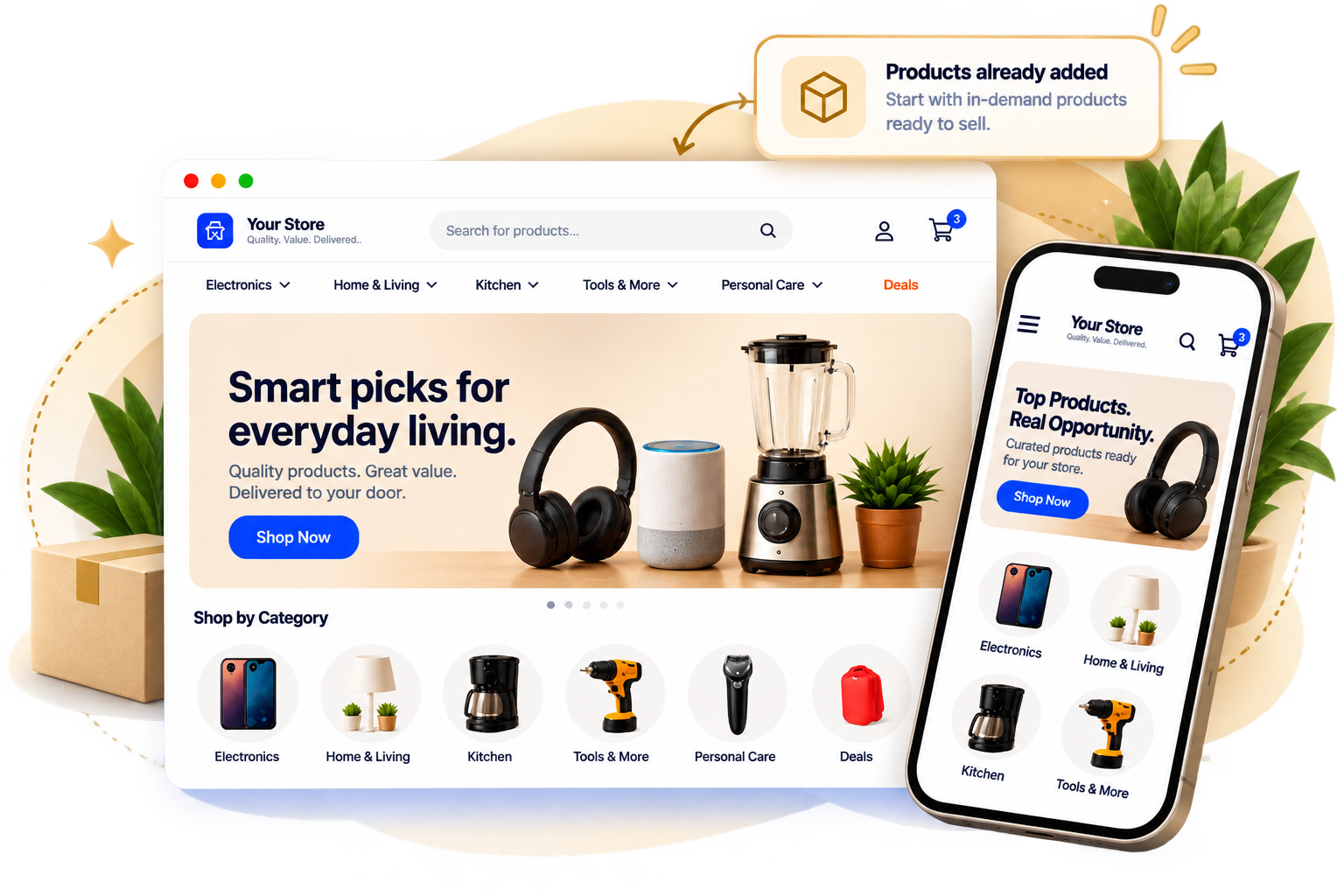
A polished ecommerce website, built and ready for you to manage.
Choose from products available through our suppliers.
Guidance and assistance as you operate your store.
For people who want to sell online
without the hassle
Join the 500,000 members that have started with eMerchantClub — over 27 years in business.

Get started fast
Start with a real online store and real products — then follow a simple path to your first sales.

We build the website
We handle the setup so you can focus on learning, listing, and getting traffic.

Support never stops
Get ongoing guidance so you keep moving forward and stay on track.
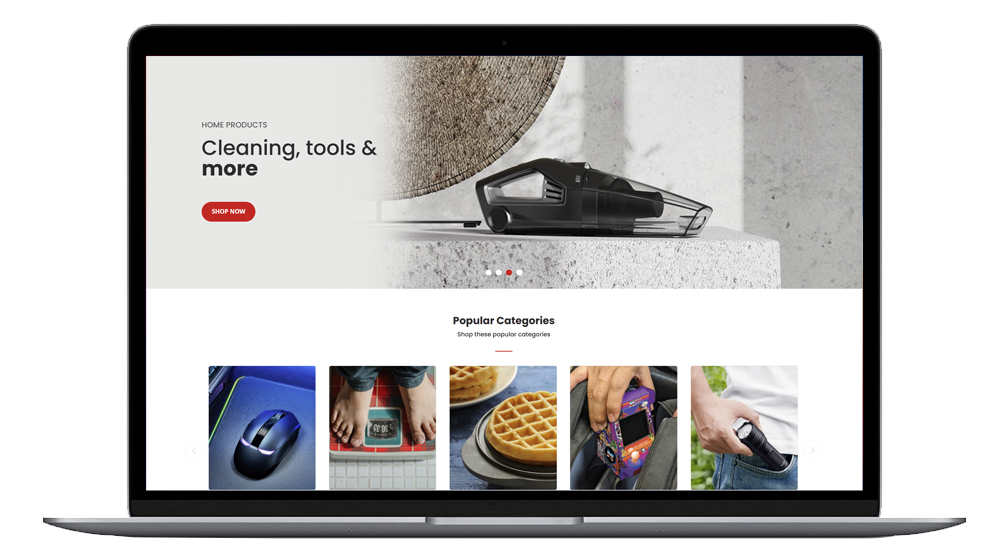
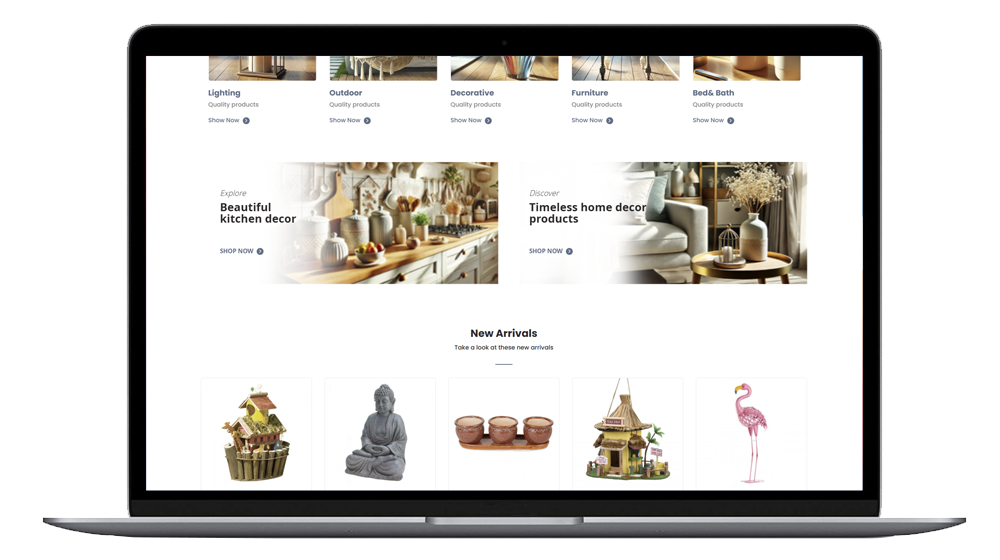
Expert design. Modern layouts. Stores built to convert.
These are real examples of what your store can look like — clean, trending, and built around your product line. We handle the setup so you can focus on selling.






Sell on online marketplaces — like eBay.
Reach buyers fast with a proven channel. We’ll help you connect products, launch listings, and get momentum.


