

How to enable testimonials block
If you are interested in activating testimonials on your website, follow these steps.
- Login to your website manager
- Click on Stores then click Configuration
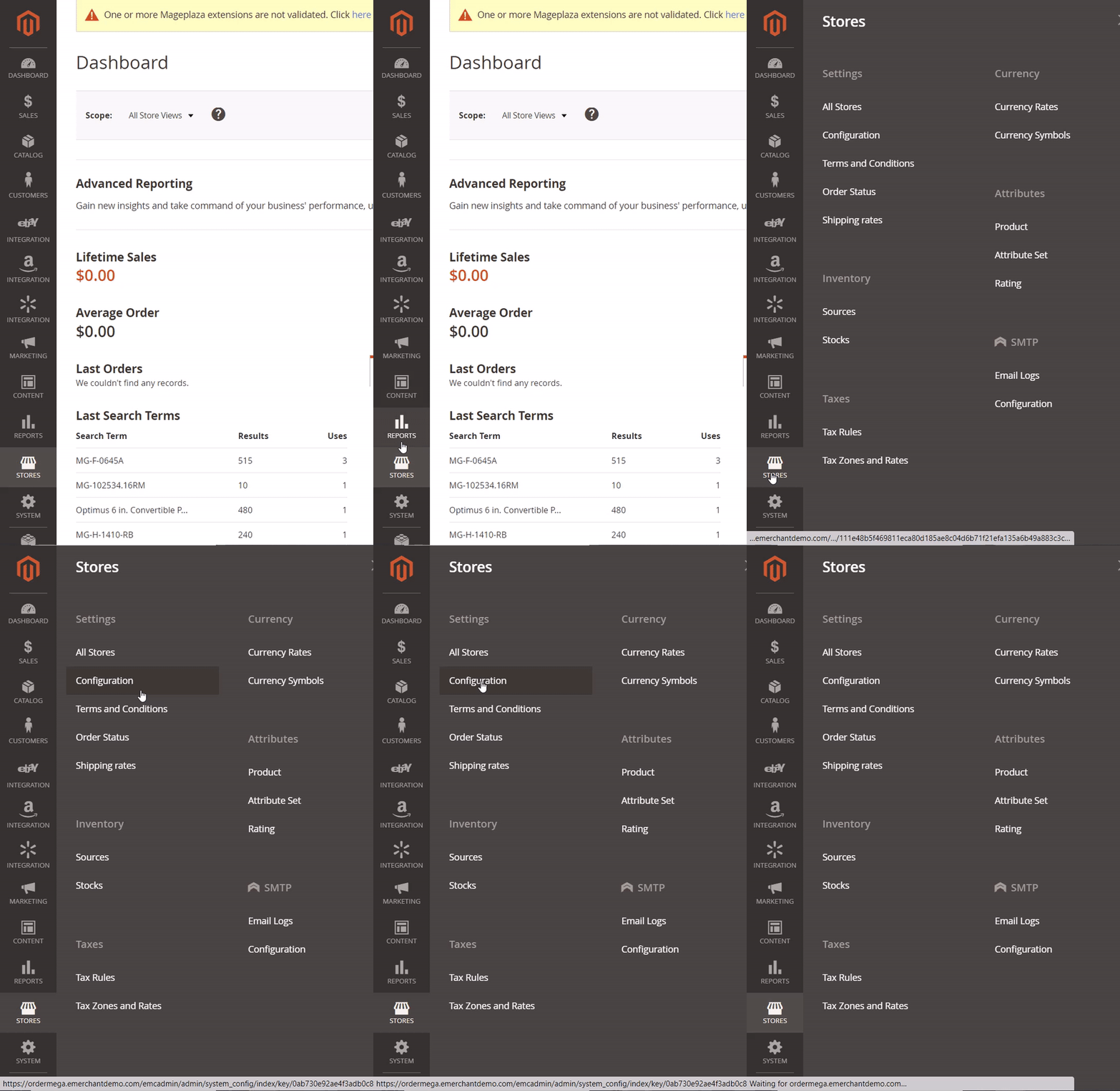
Next you must choose theme Version 3. Here is how you navigate:
3. Click EMC then Home Page Customizations

Now set the Version to V3 and Enable Testimonials to Yes (Make sure to click SAVE CONFIG in top right corner when done)

Next, navigate to the content blocks section. Click Content > Blocks

Next, find the testimonials block and click edit on right hand side
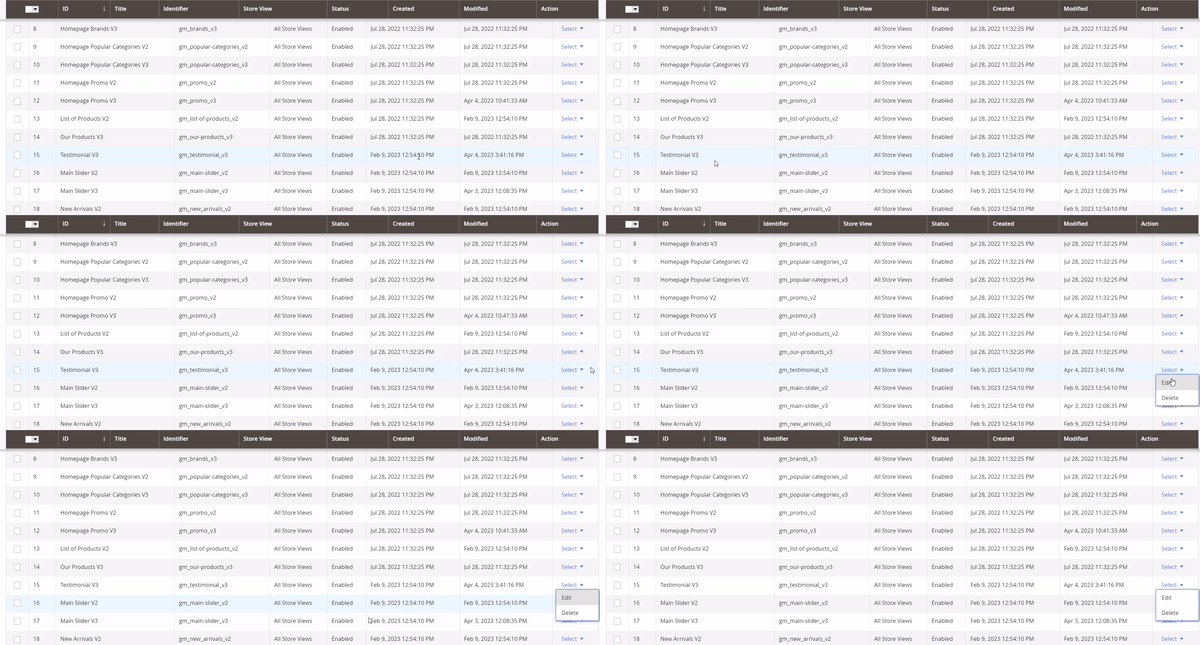
Now, make sure the Testimonials Block is Enabled

Your last step is to create a footer widget so the content block has a place to show.
First, Click on Content then Widget
Next, you want to Click Add Widget.
In the settings area for Type select CMS Static Block
For Design Theme select Luma Child and click Continue

Name your widget title Testimonials and select All Stores View
Next, scroll down click Add Layout Update. For Display on All Pages.. for Container select Before The Footer
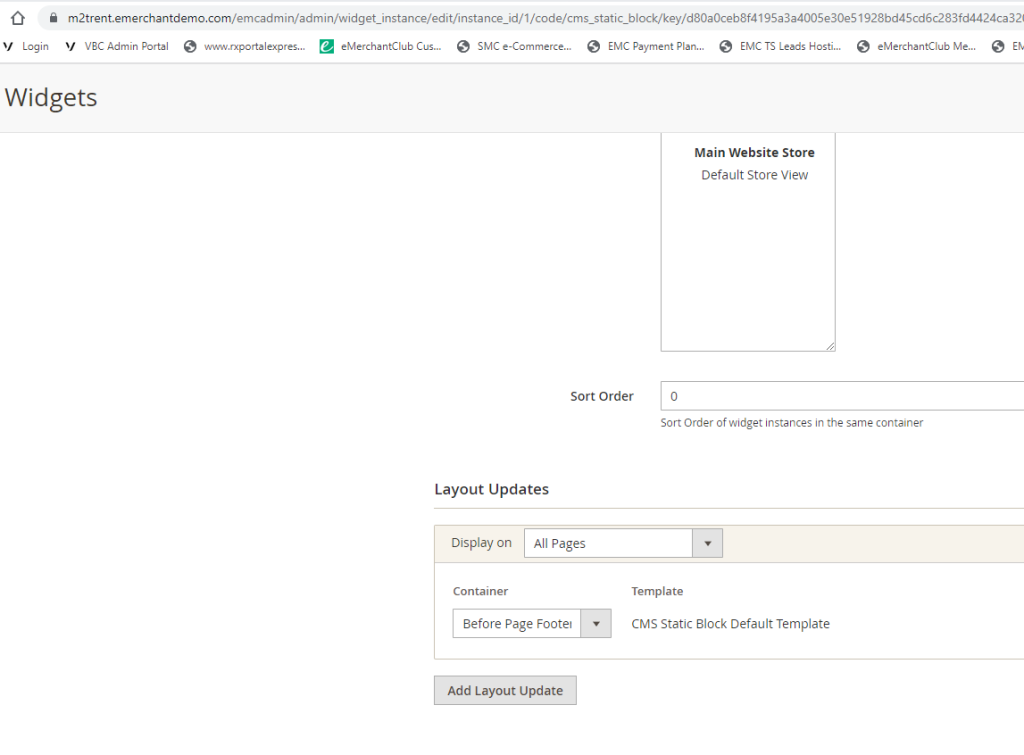
Now, scroll up and click Widget Options… Click the Select Block button. From here you will Select the Testimonials V3 row.
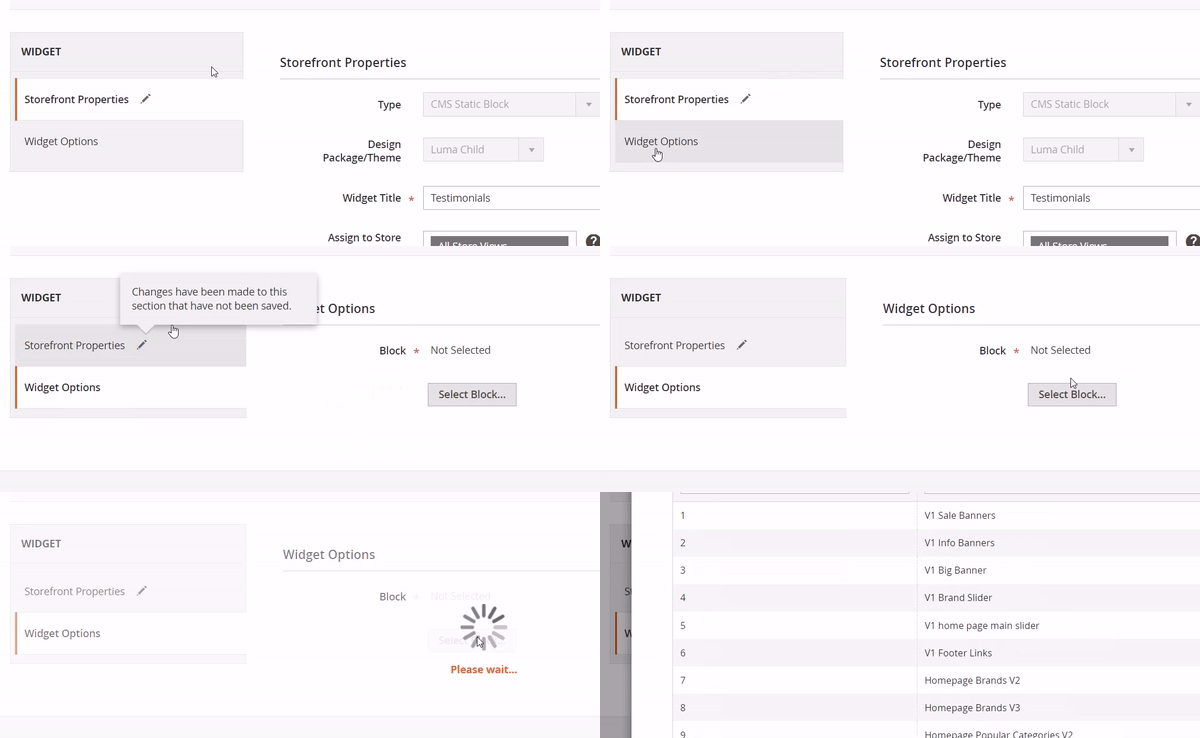
Now, click the Save button in the top right corner.
Your final step is to clear cache. Navigate to System > Cache Management > click Flush Magento Cache
