-
Getting Started
- Customization form
- Magento Site Manager Login
- PayPal Business Set Up
- Connecting PayPal
- Getting Started
- How to login to your site manager
- The Difference Between Wholesale and Retail Pricing: A Comprehensive Guide for eMerchantClub Members
- Enable & disable products
- The Importance of a Brand Logo: Why Every Business Needs One
- Amazon Pay Set Up
- How to set up Stripe Payments
-
Magento Customizations
-
Magento Products
-
Magento Customers
-
Website Promotions & Sales
-
Product Warehouses
-
Placing Product Orders
-
Marketing Center
- How to run Facebook Ads
- Facebook Posts
- How to market on eBay
- How to write a blog
- Social media marketing
- Using gift cards
- What is SEO?
- How to add a blog post
- Giftcards
- Digital Catalogs
- Integrating Amazon Pay
- Google Search Console set up
- Walmart Integration
- Fulfilling eBay Sales Using Wholesale Product Warehouses
- How to Set up a Facebook Business Page
- Guide to M2E Pro Magento to eBay Integration
- How to get more views/impressions on your eBay listings
- SEO in 2025: Essential Strategies for New Websites to Generate More Traffic and Sales
- Show all articles ( 3 ) Collapse Articles
-
Version 24 Training
-
Integrations
-
v25
Connecting PayPal
We will now cover how to connect your business PayPal account to your Magento website. This process is very simple but you need to follow the steps very closely to execute this correcly.
Login to your site manager
The first thing you need to do is login to your website manager (think of this as the backend of your website)
Please remember to login to your website simple enter in your URL followed by /emcadmin to get to login screen. From there you will enter your login credentials that were emailed to you.
For example:
URL = google.com
Site manager URL = google.com/emcadmin
Remember to enter this information in the URL bar and NOT Google.
This is what your login area should look like:

After logging into your site manager be sure to login to your business PayPal account so you are prepared. You will need to jump from your site manager and PayPal account to complete this set up.
The set up
Now, we will cover all of the steps to set up the connection between your PayPal account and website. Please follow the steps and screen shots exactly remembering to copy and paste information when needed.
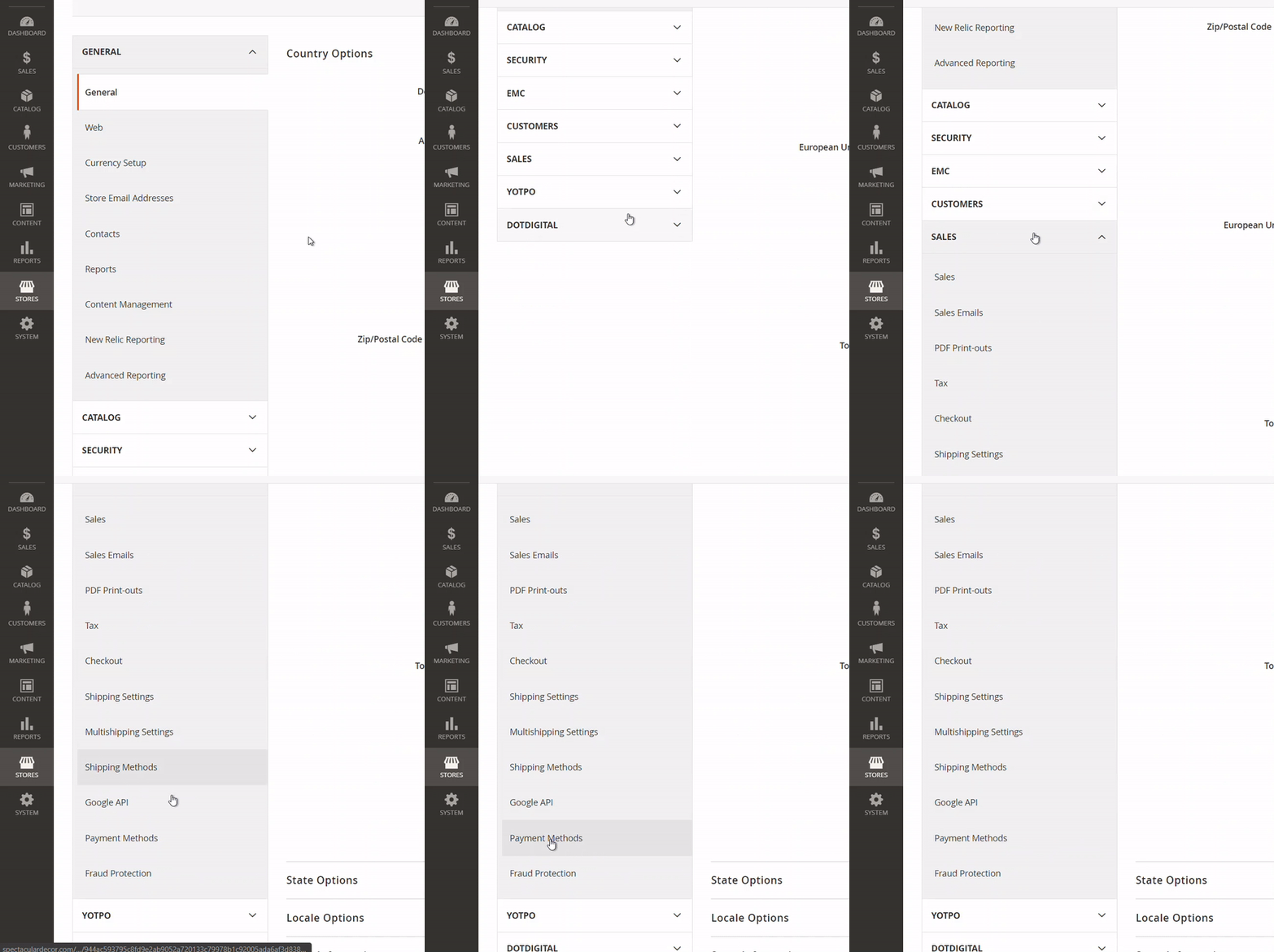
From your side panel navigate to Stores > Configuration

After selecting Configuration… navigate down to Sales (click for drop down) then select Payment Method
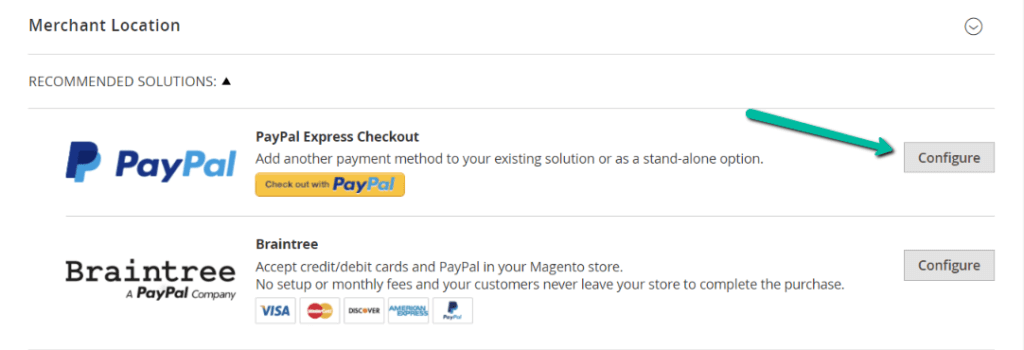
Now, you will see PayPal Express Checkout option. You need to click Configure
Head to PayPal.com and get your API credentials
Navigate to your PayPal dashboard home page. Next, you will need to go into your PayPal settings and retrieve some information for your Magento website.
This is your navigation: Hover over your name in top right > Click account settings from dropdown > then click Update in API Access section
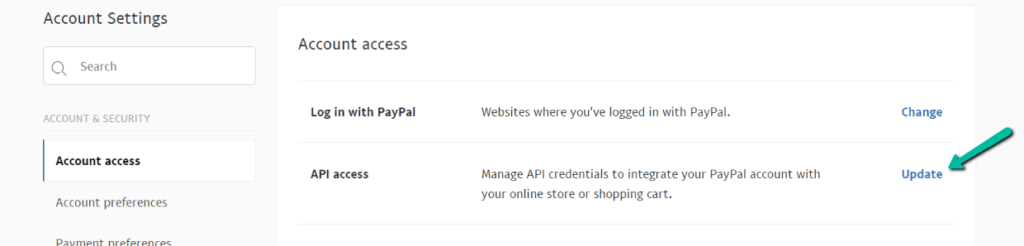
Next, scroll all the way down to NVP/SOAP API integration (Classic) section and click > manager API credentials
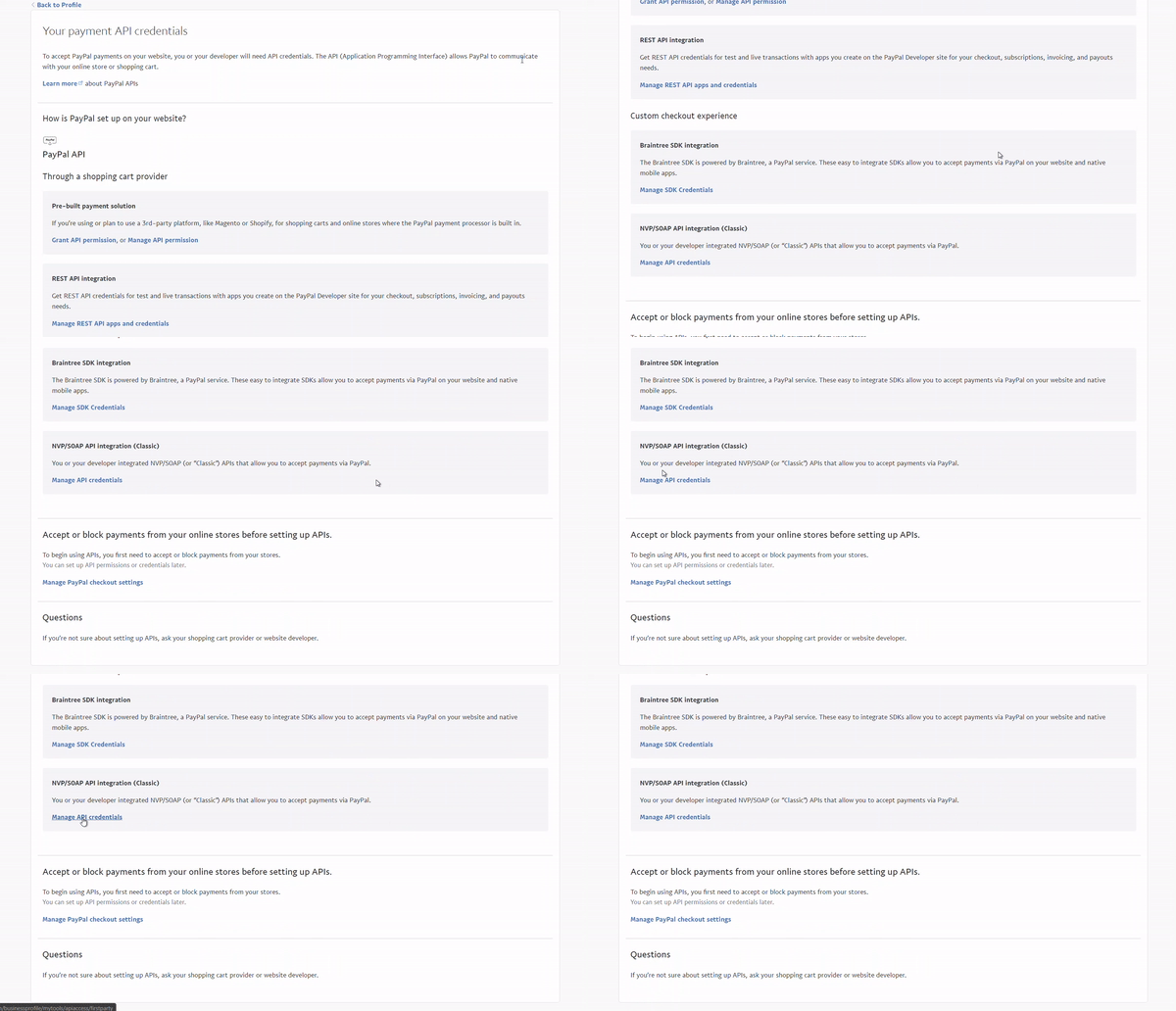
Now the important Copying & Pasting begins. Let’s copy and paste to ensure we don’t make mistakes entering credentials.
First, click Show next to API Username.
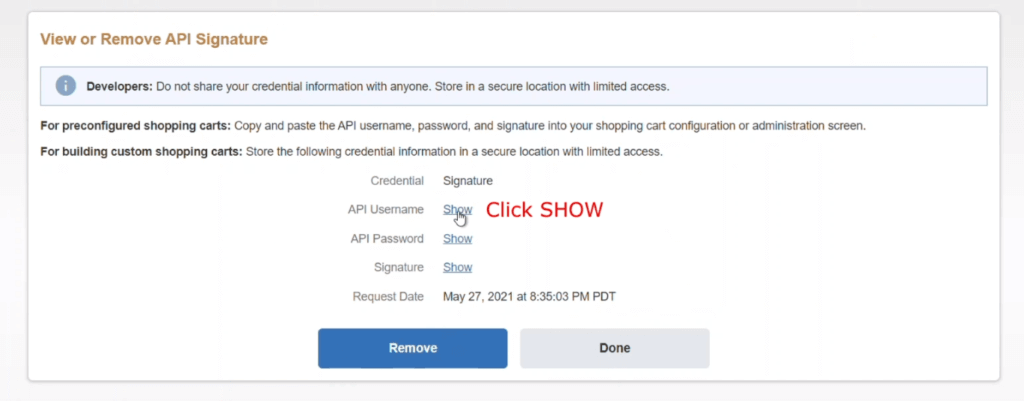
Your PayPal API Username will now be shown. Do not share this with anyone. Copy and Paste this information in your site manager where you were at before (Express checkout section)… in the API Username field.
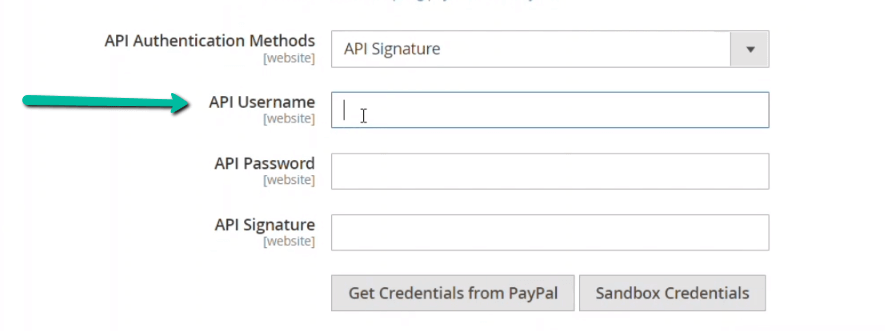
Repeat this action for API Password and API Signature.
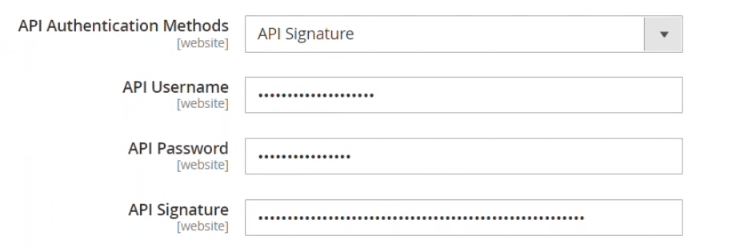
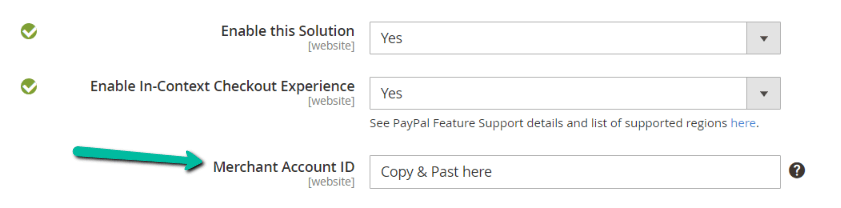
Next, make sure Enable this solution & Enable In-Context Checkout Experience is set to YES.

Your last step is to get your Merchant Account ID from PayPal.
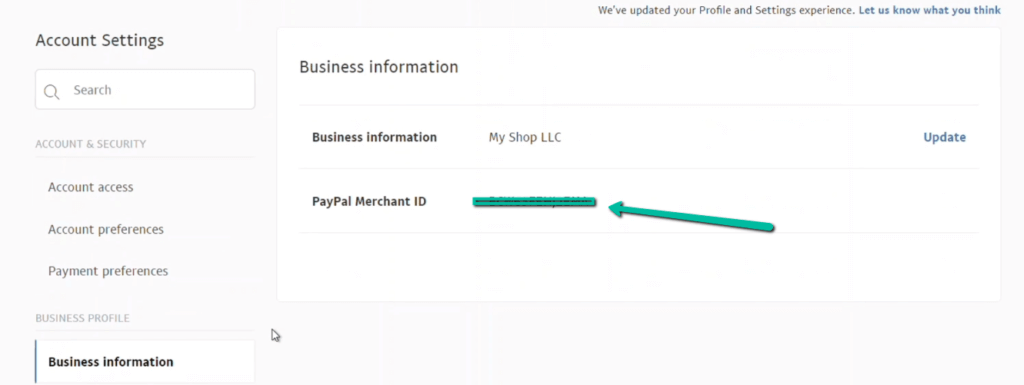
Go back to Account Settings > Click Business Information
You will see your PayPal Merchant ID. Copy and Paste that ID into Merchant Account ID section in Magento.
Now simply click the big orange Save Config button in top right corner to save and apply your changes. Your PayPal Business account should now be connected to your website!